Paste your video. Get a thumbnail that earns the click.
AI Thumbnail Generator for YouTube
Use our AI thumbnail generator with a video idea or your own photo. Plan for free, then sign in to generate: new accounts get 20 free credits.
Your video link
youtube.com/watch?v=…
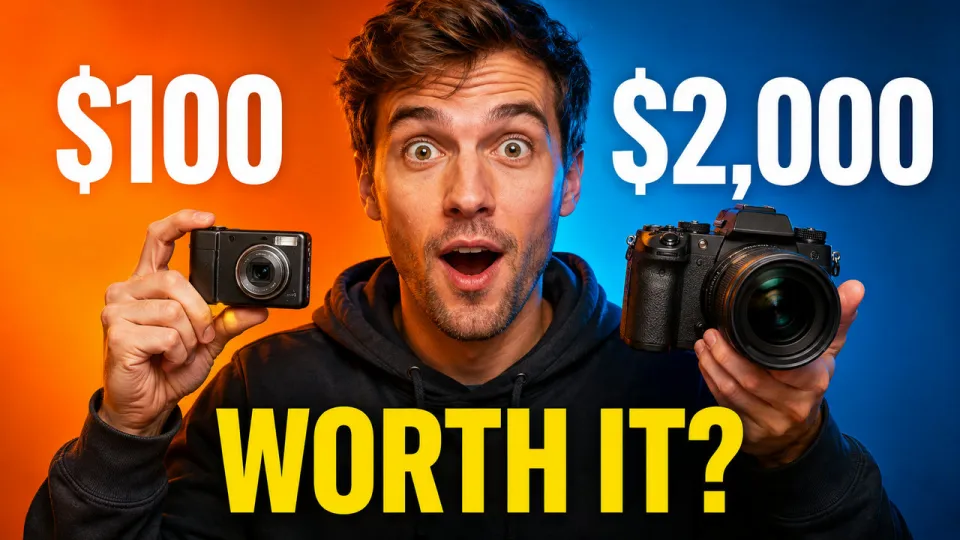
I tested a $100 camera vs a $2,000 camera
Lens Lab · example
Free plan: pick a headline
- WORTH IT?Recommended
- $100 vs $2,000
- DON’T BUY YET
Generate with credits
 Example
AI-Generated YouTube Thumbnail Examples
Explore tech, food, travel and gaming examples. Reuse a visual style for your own video.
Tech Review Thumbnails
AI-generated example
Food and Recipe Thumbnails
AI-generated example
Travel and Vlog Thumbnails
AI-generated example
Gaming Thumbnails
AI-generated example
How to Create a Thumbnail (in 3 Steps)
Describe Your Video or Paste a Link
Tell Thumbrix what the video is about in a sentence, or paste its YouTube link: the cover is attached as a reference and the title goes to the planner. Add your own photo when a person or product must appear.
Pick a Headline, Free
The AI plans before it draws: it suggests headline options and scene directions. Choose one, ask for more options, or write your own. Planning costs nothing, with or without an account.
Generate and Download
Sign in to generate the image with your credits; allow about two minutes. Download the full-size original with no watermark, or change the brief and generate again to compare.
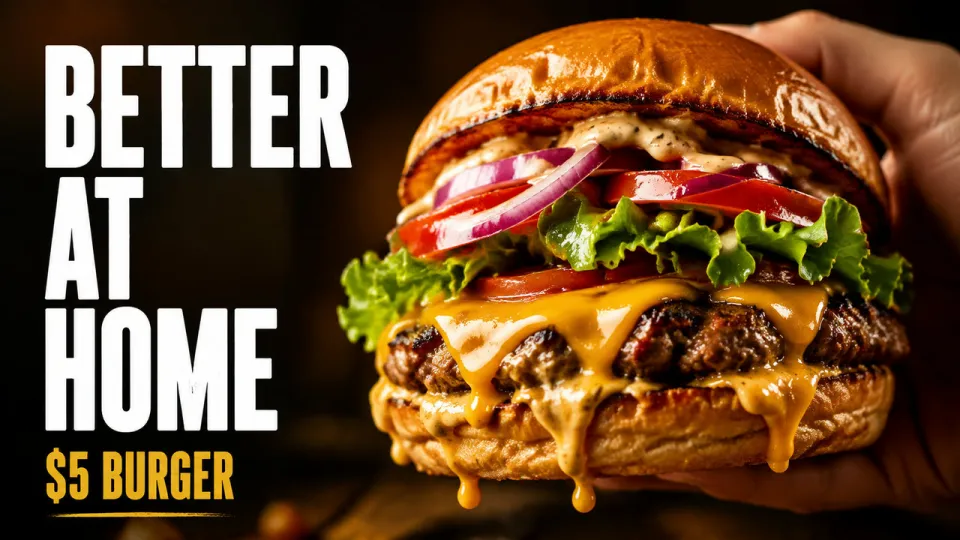
Homemade $5 burger that beats fast food. Hungry, warm, dramatic.
- BETTER AT HOME
- $5 vs $15
- NEVER GOING BACK
The first one.
 Example
AI Thumbnail Generator FAQs
Can I use the AI thumbnail generator for free?
Yes. Planning with the AI is free without an account, and new accounts get 20 free credits, shared across image tools. Failed operations return their reserved credits.
What do the AI thumbnail generator’s credit packs and plans include?
Choose a one-time credit pack: 60 Credits for $2.99, 300 for $15 or 600 for $30. Packs make 1080p images and their credits last one year. Monthly plans add credits every month, 2K and 4K, several versions at once and 10–20% off packs. Images and edits use credits by size and model, shown before you generate; planning is free.
Does the AI thumbnail generator need a photo?
No. A written description is enough to create a thumbnail. Upload a photo when you want the result to use a particular person, product or object as a visual reference. Use a JPG or PNG under 5 MB, no larger than 4096 pixels on either side and under eight megapixels. A clear, well-lit photo with an uncluttered subject works best. AI may change details, so always review the result before publishing it.
Are the thumbnails on this page my generated results?
The labelled examples show what the AI thumbnail generator can create. They are prepared illustrations, not results from your description. After you press Generate thumbnail, the workspace opens and shows your result when generation finishes. Example prompts are starting points, and their output will vary between runs.
How long does the AI thumbnail generator take?
Allow about two minutes for your thumbnail. Generation starts after you submit your description. Queue times and scene complexity affect the wait. The preview shows the actual elapsed time while your image is being created. You can refresh or return in the same browser and check the saved task. A request that times out returns its reserved credit so you can try again.
Can I add text or change the design?
The AI thumbnail generator has an optional Text on thumbnail field for your headline. A few large words usually work better than a complete video title. The AI creates the image and lettering together, so spelling, placement and small details can vary. Check the output before downloading. To change the scene, colors or headline, edit your inputs and generate a new version. The first version of Thumbrix does not include a layer-based design editor.
Will the AI thumbnail generator improve my click-through rate?
A clear thumbnail can help viewers understand a video, but no design guarantees clicks or growth. Results depend on the audience, topic, title and where the video appears. Aim for a truthful visual promise that the video delivers. Compare variations over time using your channel analytics, and change one major element at a time when you want to understand what viewers respond to.
What happens to my photo and generated thumbnail?
The AI thumbnail generator sends your description and optional photo to our image provider. The site keeps a local draft in your browser to help you return after signing in or checking out. Generated files are stored with your task and served through access checks. Original files are not included in the public preview response. Only upload material you have permission to use, and read our Privacy Policy for the current processing details.
What if I close checkout or my payment is delayed?
Closing or cancelling checkout does not remove your saved thumbnail. Return to the AI thumbnail generator with the same account. Paid credits and 2K/4K access appear after the payment provider confirms the purchase; visiting a success URL alone does not unlock them. Some payments take longer to confirm. Check your balance before buying again, and keep your receipt.
Get More from the AI Thumbnail Generator
Start with the story you want the AI thumbnail generator to tell. It might show the surprising result of an experiment, the contrast between two products, or the place a journey leads. Start with that single idea. When every object competes for attention, even a beautifully rendered image becomes hard to read in a small feed.
For a comparison video, name both subjects and explain their relationship: a budget camera beside a professional camera, for example. For a tutorial, show the result someone wants to achieve. For a travel story, describe the setting and a point of human interest. Concrete subjects give the AI thumbnail generator more direction than a request for a viral image.
Write a Clear Thumbnail Prompt
Give the AI thumbnail generator a subject, composition and mood, in that order. “A home cook holding a giant burger, close-up framing, warm kitchen light, surprised expression” gives the image a clear center. You can add a background color or leave space for a short headline. Avoid combining several unrelated scenes in one request, especially when the final image needs to work at a glance.
If the first result feels too busy, simplify the next prompt. Remove a secondary object, ask for a closer crop, or change the background to something quieter. If it feels flat, try a stronger expression or a clearer contrast between subject and background. Each new generation is a separate variation, so save a version you like before exploring another direction.
Check Text and Composition at Small Sizes
View the thumbnail at roughly the size it will appear beside other videos. Can you still identify the main subject? Can you read the headline without zooming in? Does the picture support the video title rather than repeating every word? A short headline, a visible face or object and enough separation from the background often make the design easier to understand.
Review accuracy too. Look closely at faces, hands, product shapes and lettering. AI can introduce details that were not in your reference photo. The right result should represent the actual video and respect the people or products shown. Once you are happy with it, download the file and review the final crop in your publishing workflow.